SkyCast – Live Weather Cards for Rapidweaver Elements
Real weather, zero setup – Just type a place, and it's live
SkyCast drops a live, auto‑updating weather card onto any page in RapidWeaver Elements – current conditions plus a 3 to 5 day forecast, pulled straight from Open‑Meteo with no API key and no account required. Just type a location name – "Berlin", "London" or "Los Angeles" – and SkyCast finds the coordinates for you automatically; change the name later and the card follows along, no coordinates to update by hand. For an exact location, enter Latitude and Longitude instead – SkyCast uses them directly. Weekdays, weather descriptions and labels switch language automatically to match your site – seven languages built in – and every color, background, border and shadow comes straight from your theme, light and dark mode included. Choose Horizontal or Vertical layout, Full or Compact size, and decide exactly which details show: description, wind, humidity, rain chance. Inside a CMS Item or Collection, Location Name and coordinates accept Twig references, so one component can show a different city on every page.
Just type a location name, and publish.
Some Examples
Component Settings
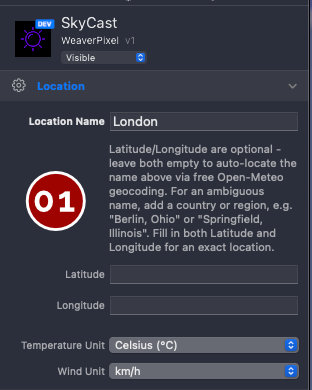
Location Name: The name shown on the card, and also what SkyCast searches for if Latitude and Longitude are left empty. "Berlin", "Hannover" or "Los Angeles" work as-is. For a name that exists in more than one place, add a country or region after a comma – "Berlin, Ohio" or "Springfield, Illinois" – and SkyCast finds exactly that one. Inside a CMS Item or Collection, this field also accepts a Twig reference from your front matter, so one component can show a different city on every entry.
Latitude / Longitude: Optional. Leave both empty and SkyCast looks up the name above automatically via Open‑Meteo's free geocoding service – no API key, no account. Fill in both and SkyCast uses your exact coordinates instead, skipping the lookup entirely – handy for a precise address, a small village the geocoding database doesn't know, or simply to avoid the extra request. As long as these stay empty, changing Location Name later moves the card automatically – no coordinates to update by hand.
Temperature Unit: Celsius or Fahrenheit for the current temperature and the forecast highs and lows.
Wind Unit: km/h or mph for the wind speed reading.
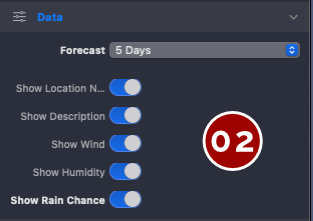
Forecast: How many days of forecast appear below the current conditions – Off, 3, 4 or 5 days. Off hides the forecast row entirely and shows just today's conditions, which suits a compact sidebar widget better than a full weekly outlook.
Show Location Name: Displays the name from Location Name next to the temperature. Switch it off if the surrounding page already makes the location obvious – a page titled "Weather in Hannover" doesn't need to repeat the name on the card itself.
Show Description: Displays the current conditions in words underneath the temperature – "Partly cloudy", "Light rain" and so on. Shown automatically in the visitor's page language.
Show Wind, Show Humidity and Show Rain Chance: Three independent switches for the stat line under the temperature, separated by a thin divider that only appears between two switches that are actually on – turn off one in the middle and the line simply closes the gap. Rain Chance works on its own even with Forecast set to Off: SkyCast still fetches just enough data for today's chance of rain, without pulling in the full multi‑day forecast.
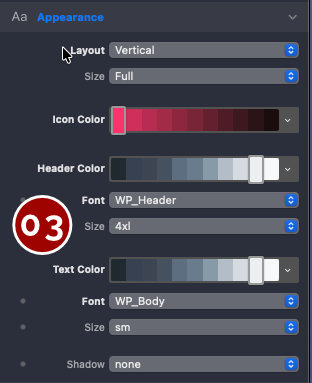
Layout: Horizontal keeps the icon and temperature side by side, the classic weather-widget row. Vertical stacks the icon above the temperature and centers everything underneath it – a better fit for a narrow sidebar or a card in a grid of equal‑width columns.
Size: Full shows the complete card – current conditions, the wind/humidity/rain stat line and the forecast row. Compact drops both of those and keeps just the icon, temperature, description and location name – a lean widget for a header or a tight corner of the page.
Icon Color: The color of the weather icon, both the large current‑conditions icon and the small ones in the forecast row. Picked straight from your theme palette, with separate light and dark mode values.
Header Color, Font and Size: The three settings for the large current temperature – the one number on the card meant to catch the eye first. Font and Size come from your theme, so a change in Theme Studio updates every SkyCast card on the site at once.
Text Color, Font and Size: The same three settings for the rest of the card – description, location name, the stat line and the forecast row. Keeping this separate from the header settings above lets the temperature stand out in a heavier font while the details around it stay light.
Shadow: A drop shadow behind the card, taken from your theme's shadow scale. Off by default, so a SkyCast card sits flat on the page until you decide otherwise.
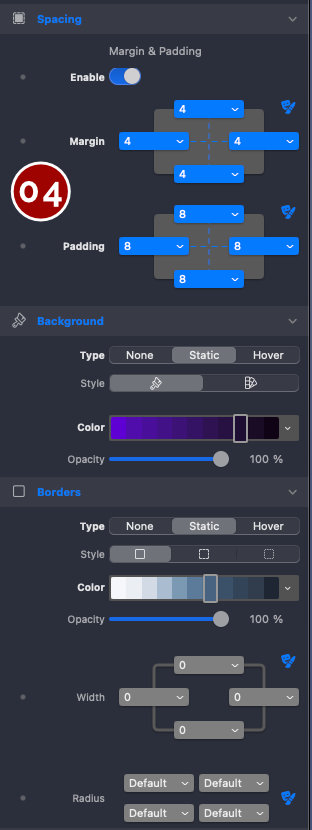
Spacing, Background and Borders work exactly like they do on every other Elements component – Margin and Padding from your theme's spacing scale, Background as a flat color or gradient with its own hover state, and Borders with Style, Color, Width and Radius, also with a hover state of their own. If you've styled a Container or a Button in Elements before, you already know how these work on SkyCast.
– Spacing: Margin and Padding, taken straight from your theme's spacing scale.
– Background: Flat color or gradient, with an independent hover state for each.
– Borders: Style, Color, Width and Radius, with its own hover state.
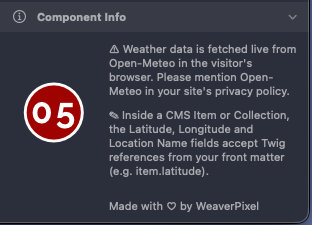
SkyCast fetches weather – and, when Latitude/Longitude are left empty, location coordinates too – live in the visitor's browser from Open‑Meteo, a free, keyless service with no account needed on your end. Mention Open‑Meteo in your privacy policy, since the visitor's browser connects directly to their servers. One thing to note: Open‑Meteo's free tier is for non‑commercial use (open-meteo.com/en/terms) – a site with ads or paid subscriptions counts as commercial in their own definition. The free tier is also capped at 10,000 calls a day (5,000/hour, 600/minute); SkyCast's caching keeps normal traffic well under that, but either limit is where their paid API plans come in.
Dynamic Locations from the CMS – Drop SkyCast once into a CMS template, and it can show a different city on every page it appears on. Inside a CMS Item or Collection, Location Name, Latitude and Longitude all accept Twig references from your content's front matter instead of a fixed value – for example item.locationName, item.latitude and item.longitude. A "Locations" collection for a multi‑city business, a set of vacation rental listings, or a store directory each get their own live weather card from a single component instance, not one copy per page. Leave Latitude and Longitude blank in the front matter, and SkyCast falls back to auto‑locating whatever name the field resolves to – exactly as it would with a fixed name.
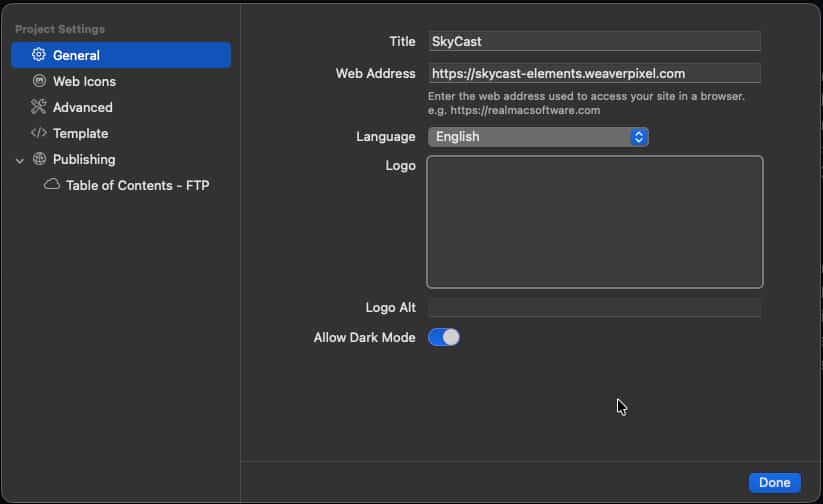
Language: SkyCast automatically follows your site's language – it is not a SkyCast setting itself, but Elements' own Project Settings → General → Language. All texts on the card follow it automatically.
Seven languages built in:
– English (also the fallback for any other language)
– German
– French
– Spanish
– Italian
– Portuguese
– Dutch

SkyCast – Live Weather Cards for Rapidweaver Elements